Posts Tagged "web"

I’ve always been using Firefox browser, I mean already for 5–6 years and never thought I would want to choose something else. Firefox is great browser and what makes it so great is all those thousands of plugins you download freely. You can find now plugin for almost everything you could ever think of – there is only one big downside. Firefox is much slower than Chrome and actually eat’s more of computer’s CPU than other browsers.

I have a friend who suggested to try Chrome again and I thought I will give it a try – now I will check how much and how good extensions Chrome has and is it enough to transfer now?

This article will try to answer to question – can designer, web developer, social marketing, SEO person actually transfer to Chrome without any loss of extension features. Are there something similar to FireBug, WebDeveloper, Color Picker, SEO For Firefox, Alexa ranks, debugging tools, which can be replaced to be used daily?

Let’s put Chrome on test – shall we?

If you know a little about Google Chrome read our previous article about this browser features – Google Chrome Review.

Chrome Extensions For Daily Browsing

1. Aviary Screen Capture

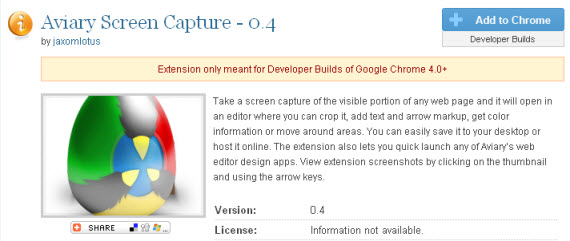
Take a screen capture of the visible portion of any web page and it will open in an editor where you can crop it, add text and arrow markup, get color information or move around areas. You can easily save it to your desktop or host it online. The extension also lets you quick launch any of Aviary’s web editor design apps. View extension screenshots by clicking on the thumbnail and using the arrow keys.

Aviary-valuable-google-chrome-extensions-web-design

2. Xmarks Bookmarks Sync

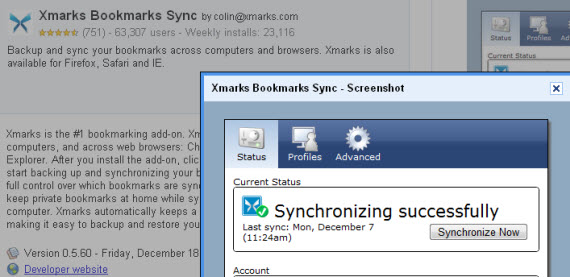
Backup and sync your bookmarks across computers and browsers. Xmarks is also available for Firefox, Safari and IE.

Since I am working on one computer at work and laptop, I love this automatic tool syncing my bookmarks  and allowing me to worry about other things.

Xmarks-valuable-google-chrome-extensions-web-design

3. AdThwart

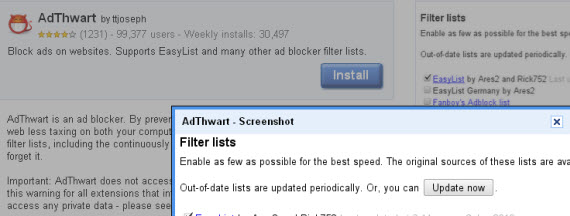
Block ads on websites. Supports EasyList and many other ad blocker filter lists.

Adthwart-valuable-google-chrome-extensions-web-design

4. Evernote Web Clipper

Evernote’s Web Clipper extension let you save interesting stuff you see on the web.
Read more »

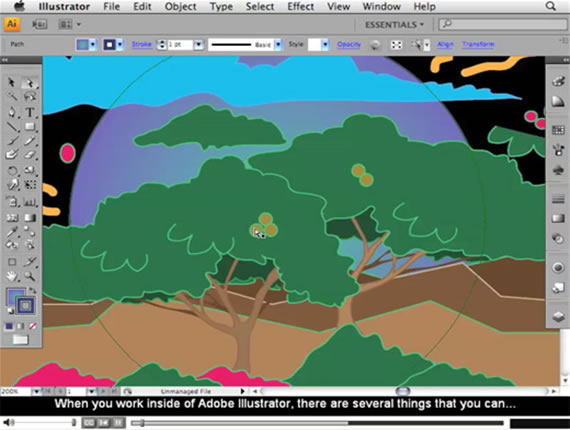
I know that you love Adobe products and I’m sure that you love even more the things that you are able to create using the Adobe products. That’s why, I’ve collected some easy to understand and very useful Adobe Illustrator video tutorials created by top Illustrator designers from all around the web. Most people consider that Photoshop is everything and they don’t actually need another product for their design projects. I strongly recommend you to take a look at this great Adobe Illustrator tutorials and you will understand why I say that you also need to use AI for more professional and artistic creations.

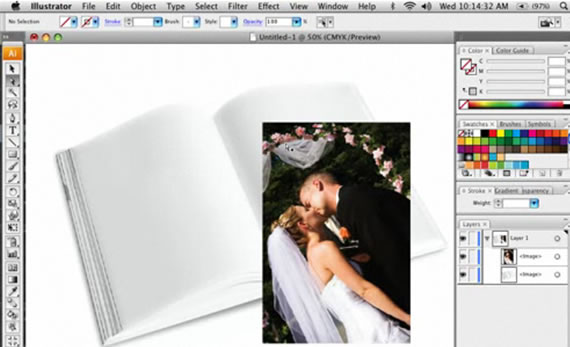
1. The Illustrator CS3 Interface

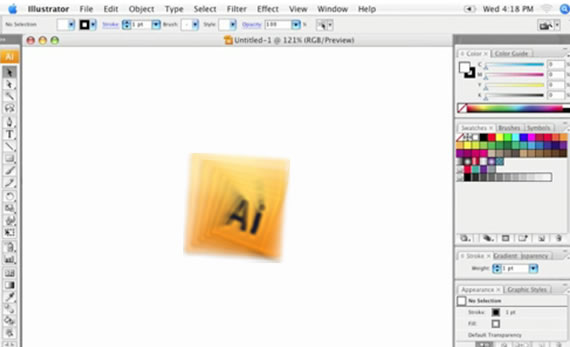
Learn about the User Interface and where you can find the tools you need.

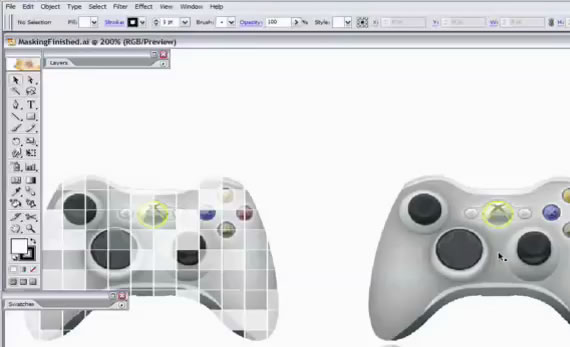
2. Everything about Masking in Illustrator

One very important thing in Adobe Illustrator: – The Masking properties.

3. How to use the pen tool in Illustrator CS2

Use the pen tool to make things more interesting

4. CS 4 Video Training

A complete CS4 Video for Beginners

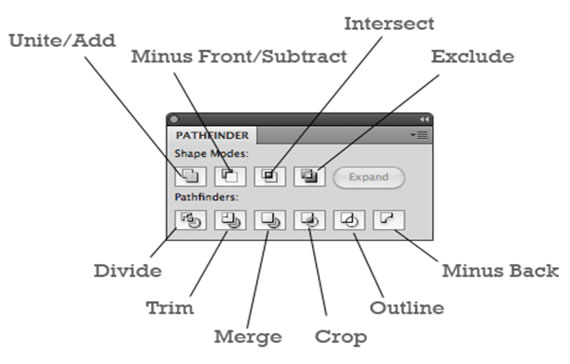
5. A Comprehensive Guide to the Pathfinder Panel

Learn how to use the Pathfinder in Illustrator.

6. Opacity Mask Tutorial

Hiding a part of your illustration can make more important another part of it.

7. Create an Ipod

We all love Apple products and this tutorial help you to customize the famous ipod in no time.

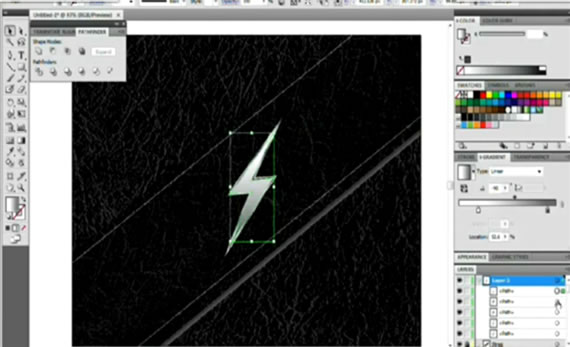
8. Metal Lightning Tutorial

Metal inspires professionals and this tutorial is 100% pro and free.

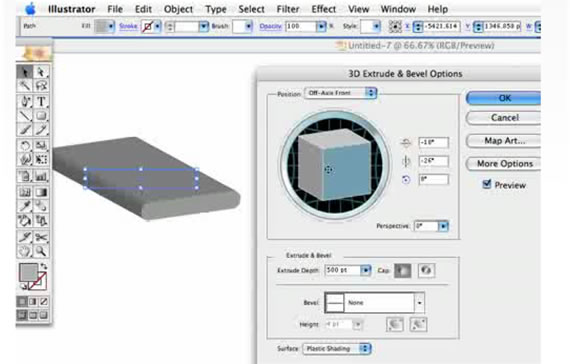
9. Make a 3D Logo in Illustrator

3D Logos are much more interesting than simple plain ones…so check this great tutorial to see how you can create one.

10. Adding Texture in Illustrator

Any type of texture for any type of Illustration.

11. Creating an Eye-Ball

Eyes are very important for any human character, and that’s why this is a very important tutorial.

12. Create a raw logo design

Professional Logo design for your company.

13. Create a neon glow in CS 3

This is a pro glowing effect.

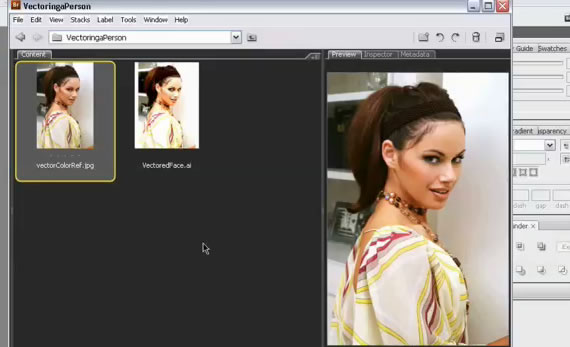
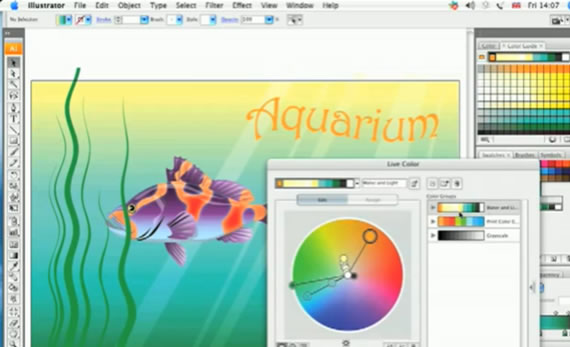
14. Live Color

Choose most interesting and inspiring colors for your creations.

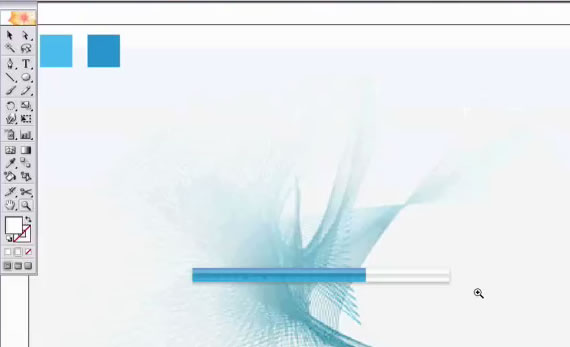
15. Drawing a gell progressbar

A progressbar is very important for Flash animations and applications.

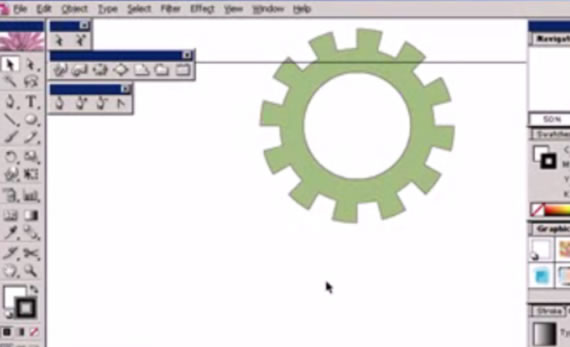
16. Draw Gear

Drawing a gear is just the title, but this tutorial will help you to create many types of illustrations.

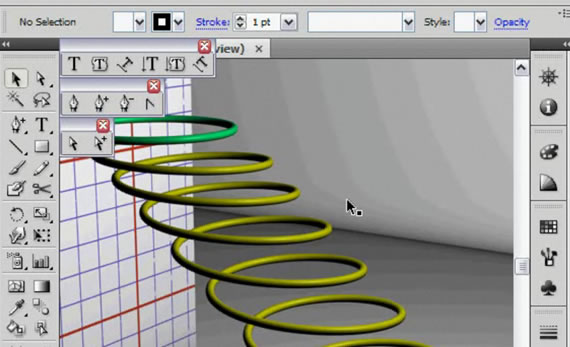
17. Create a Helix in Ai

A helix can be useful in many ways and that’s why you should take a look at this tutorial.

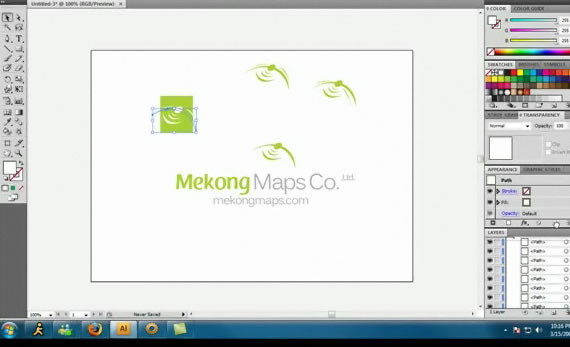
18. How to design a professional logo using Adobe Illustrator

Create a custom logo for your company.

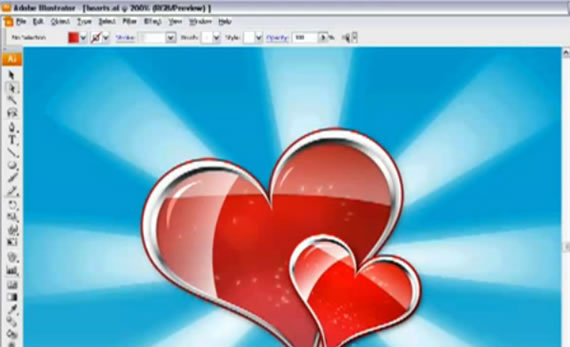
19. Draw a Valentine’s Day e-card

I know that it isn’t february yet, but you definitely should know how to draw a valentine.

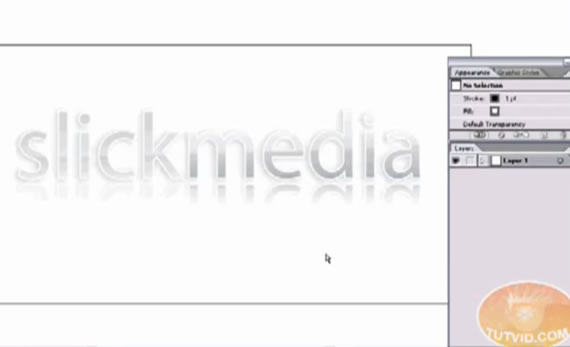
20. Shiny Text

Shiny text was always interesting and with this tutorial you will be able to create it too.

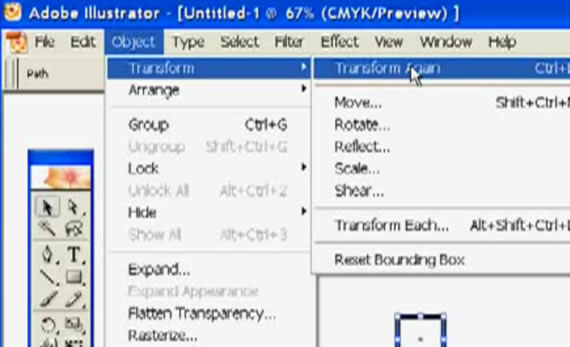
21. About Transformation Tools

Restizing, croping and wrapping can improve your works and make them more attractive.

22. Tribal Sun

Famous and cool sign created in illustrator.

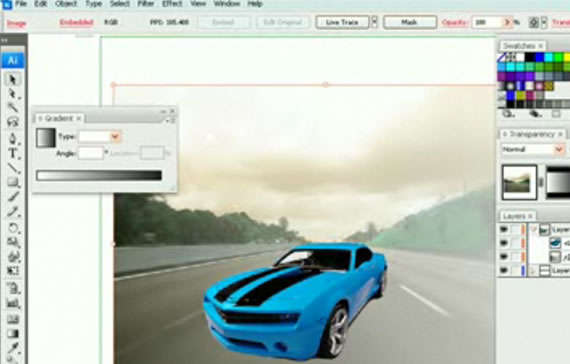
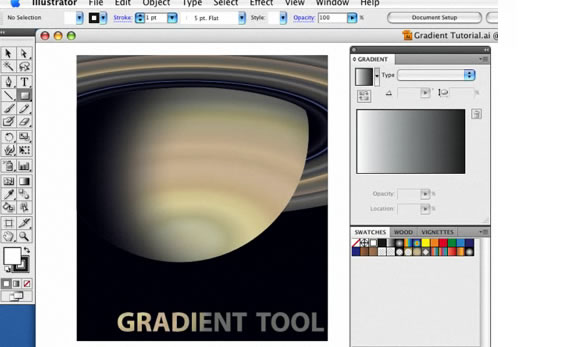
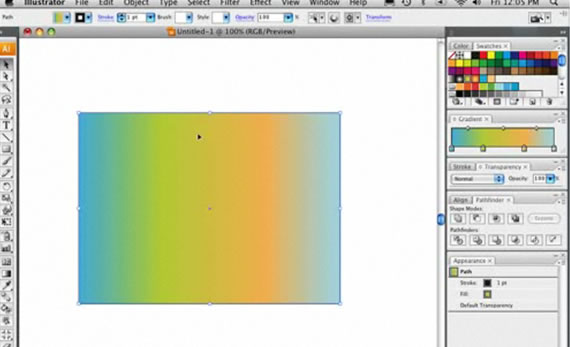
23. The Gradient Tool

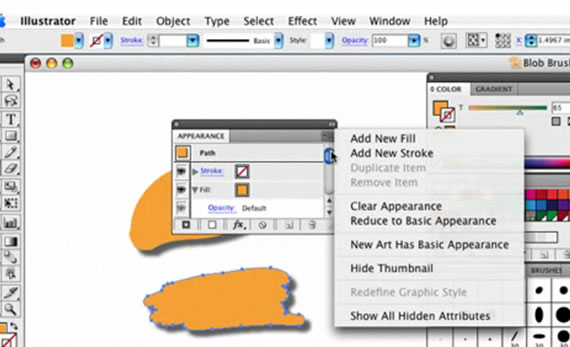
24. Blob Brush: Shape Objects

A cool new feature for Illustrator.

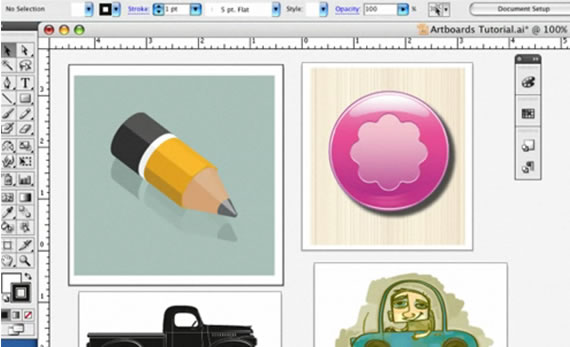
25. Artboards in CS4

Artboards feature for CS4.

26. Blending Gradients

“Play” with gradients to create interesting designs.

27. Create a fusion between Adobe Illustrate and Photoshop

Use Photoshop and Illustrator components to build better and powerful designs.

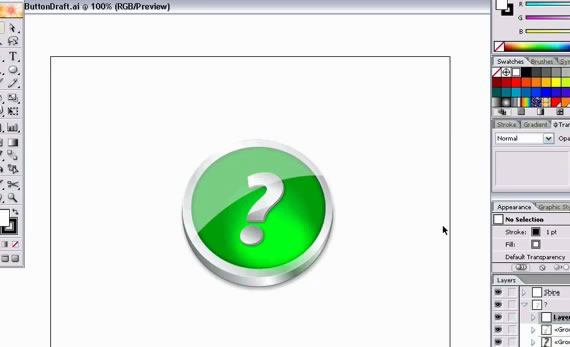
28. Create a metal like button

A very nice looking metal button.

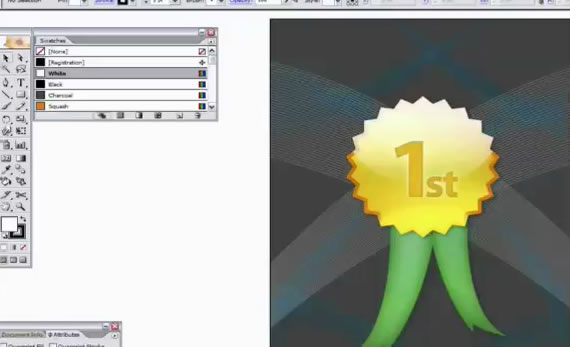
29. Cool Award Badge

Vey useful illustration for any type of activity which includes competition or quality review.

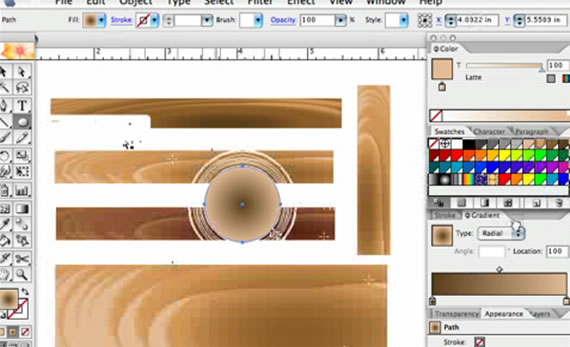
30. Wood Effect with gradients

Bring the nature into your creations.

31. Background Effects Illustrator Way

Even if you are a beginner with this tutorial you will be able to create pro background effects.

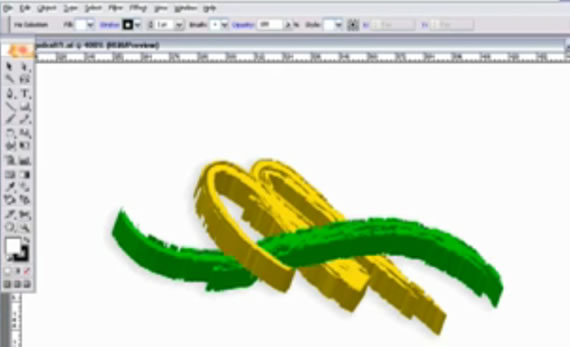
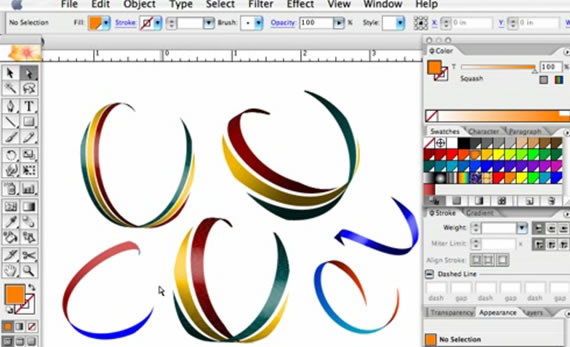
32. Create Ribbons

Cool and instant ribbons.

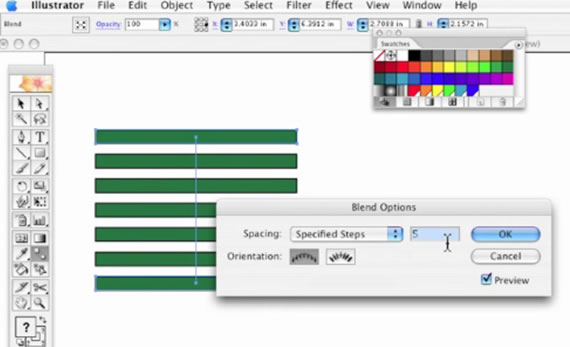
33. Spacing Boxes in Illustrator

This will make your job a whole lot easier.

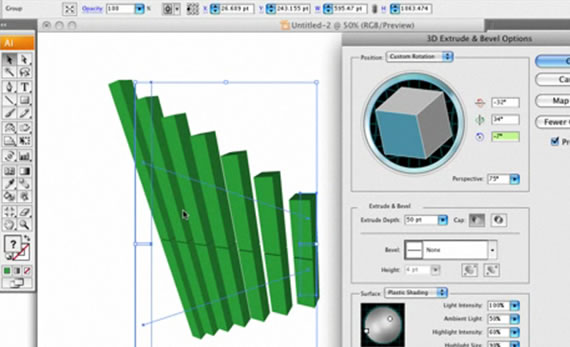
34. 3D Effects Graph

Create a cool stats graph in 3D.

35. Wraping in Illustrator

Modelate your images and illustrations in no time.

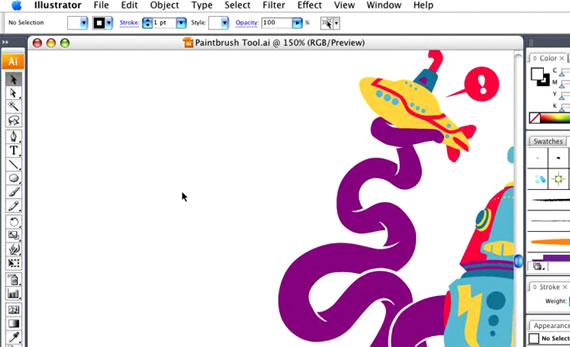
36. Using The Paint Brush Tool

The most essential drawing tool available in Illustrator and Photoshop.

37. Draw Fluffy Clouds

Funny and flower-power clouds.

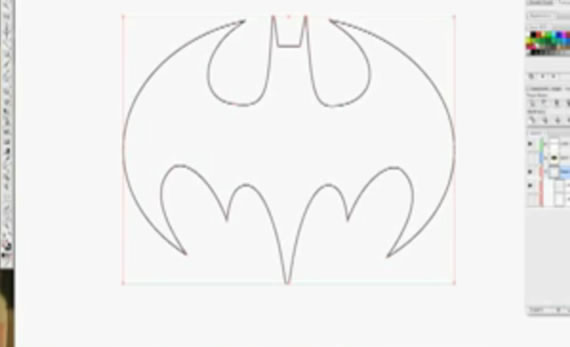
38. How to draw Batman’s logo

One of the coolest Cartoon hero sign can now be easily reproduced in Illustrator

39. Intricate Patterns

Create cool backgrounds for your design projects.

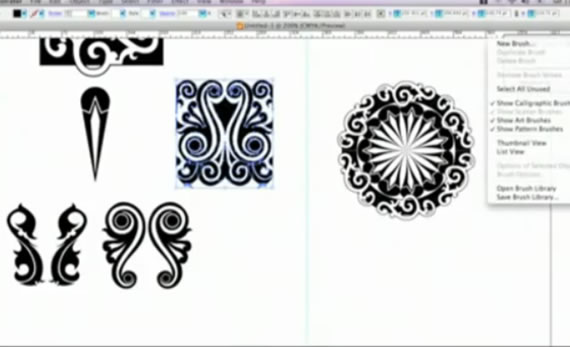
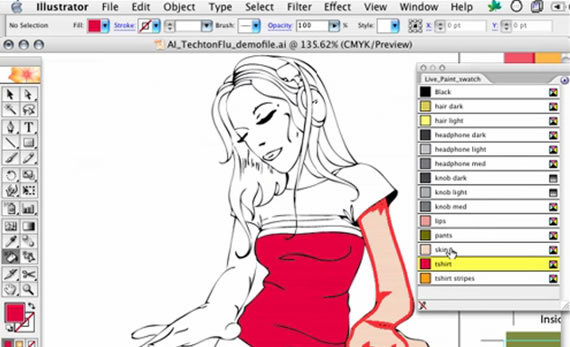
40. Using Live Paint

Bring life into your Illustrator creations.

41. Line Draw for Cartoons

Make your cartoon creations more interesting for everyone.

SlideDeck

VideoTeaching.com

When we think about CSS-Styled lists, different ideas come to mind but that rusty old image of bulleted items is not one of them anymore. There are lots of different methods to format nice HTML lists that is used in most web designs not only for navigation menu (vertical or horizontal) but for formatting many design blocks in a stylish and elegant manner. In this article, we’ll have a look at how such lists can create a whole new look, feel, and effect of a site.

Style Your Ordered List

Styling your Lists

By default, most browsers display the ordered list numbers same font style as the body text. Here is a quick CSS tutorial on how you can use the ordered list (ol) and paragraph (p) element to design a stylish numbered list.

Elastic Calendar Styling with CSS

Styling your Lists

You can tackle calendar styling with pure CSS, and I feel it makes just as much sense semantically as a table does. By using CSS, we can even do some cool things like do all our sizing with ems so our calendar layout will be elastic. That is, grow in both width and height when text is resized in browsers, while greatly increasing accessibility.

Three Column CSS

Styling your Lists

A Three Column CSS Layout Using Just an Unordered List

Simulating a Table Using an Unordered List

Styling your Lists

With the raise in popularity of AJAX sortable list elements, using list items to represent a multiple column data table can allow for easy sorting of various more “tabley” information. Here is how to simulate a table using an unordered list.

How to Create a Block Hover Effect for a List of Links

Styling your Lists

Learn how to create this “block hover” effect. Because IE only supports the :hover element for links, the link anchor needs to go around all the text in the list item. Therefore, we need to provide some additional hooks in order to style the content. We do this through the use of <em> and <span> tags.

<div id="links">
    <ul>
      <li><a href="#" title="Text">Link Heading One
        <em>Description of link.</em>
        <span>Date posted</span></a></li>
      <li><a href="#" title="Text">Link Heading One
        <em>Description of link.</em>
        <span>Date posted</span></a></li>
    </ul>
  </div>

The Amazing LI

Styling your Lists

Using CSS and Unordered List Items to Do Just About Anything.

Centering List Items Horizontally

Styling your Lists

Slightly Trickier Than You Might Think, by wrapping the list inside a table div and using display: table; trick.

Turning a list into a navigation bar

Styling your Lists

Learn how to create a navigation bar using unordered lists.

FORM elements design using CSS and list (ul and dl)

Styling your Lists

Tables are useful to design complex HTML forms but a good alternative is to use list elements and CSS. In this post you will see another way to design FORM using list elements <ul> and <li>.

<fieldset>
<legend>Sign-up Form</legend>
<form name="signup" action="index.html" method="post">
<ul>
<li> <label for="name">Name</label>
<input type="text" name="name" id="name" size="30" />
</li>
<li> <label for="email">Email</label>
<input type="text" name="email" id="email" size="30" />
</li>
</fieldset>

5 Ways to Set Your Unordered Lists Apart

Styling your Lists

Here are five different ways to style your unordered lists with CSS.

Taming Lists

Styling your Lists

In this article, Mark Newhouse demonstrates how to use CSS to bring unwieldy lists under control. It’s time for you to tell lists how to behave, instead of letting them run wild on your web page.

<div id="bread">
<ul>
	<li class="first">Home
	<ul>
		<li>&#187; Products
		<ul>
			<li>&#187; Computers
			<ul>
				<li>&#187; Software</li>
			</ul></li>
		</ul></li>
	</ul></li>
</ul>
</div>

Nested lists used to create a simple folder metaphore

Styling your Lists

Here’s a rough and ready example showing how to make a folder analalogy using a nested list.

<ul id="sitemap">
<li><a href="#">item 1</a></li>
<li><a href="#">item 2</a></li>
<li><a href="#">item 3</a></li>
<li><a href="#" class="open">item 4</a>
<ul>
<li><a href="#">sub-item 1</a></li>
<li><a href="#">sub-item 2</a></li>
<li><a href="#" class="open">sub-item 3</a>
<ul>
<li><a href="#">sub-sub-item 1</a></li>
<li><a href="#">sub-sub-item 2</a></li>
<li><a href="#" class="open">sub-sub-item 3</a>
<ul>
<li><a href="#">sub-sub-sub-item 1</a></li>
<li><a href="#">sub-sub-sub-item 2</a></li>
<li><a href="#">sub-sub-sub-item 3</a></li>
<li><a href="#">sub-sub-sub-item 4</a></li>
</ul>
</li>
<li><a href="#">sub-sub-item 4</a></li>
</ul>
</li>
<li><a href="#">sub-item 4</a></li>
</ul>
</li>
<li><a href="#">item 5</a></li>
<li><a href="#">item 6</a></li>
</ul>

Handcrafted CSS + HTML Grid Calendar 2009

Styling your Lists

Some experiments with css and grids in order to make CSS Grid Calendar for 2009.

Best Practices

Mixx’s Popular Stories

Styling your Lists

The markup is not simple, since they are using child <ul> along with a voting form and <span> tags.

<ul>
    <li>
      <h4><a href="#"></a><span><a target="_blank" href="#"></a></span></h4>
      <div>
	<div><span></span></div>
	<div>
             <form>
		    <input/>
		    <button type="submit"><span></span></button>
		    <input/>
             </form>
	 </div>
      </div>
      <ul>
	  <li><a href="#"></a></li>
	  <li></li>
	  <li></li>
      </ul>
      <blockquote>
	  <p></p>
      </blockquote>
      <ul>
	  <li><a href="#"></a></li>
	  <li><a href="#"></a></li>
	  <li><a href="#"></a></li>
      </ul>

    </li>
</ul>

Thecosmicmachine

Styling your Lists

Thecosmicmachine’s Supported social networks, uses unordered list. Clean and simple.

<ul id="web2List">
					<li>
						<img src="images/twitter_32.png"/>
						<strong>Twitter</strong><br/>
						What are you doing?
					</li>
					<li>
						<img src="images/facebook_32.png"/>
						<strong>Facebook</strong><br/>
						Connect with the people around you.
					</li>
</ul>

Viget- Inspire

Styling your Lists

Viget- Inspire uses a pretty nice calender in their footer using unordered list.

<ul class="clearfix">
       <li><a href="http://www.viget.com/inspire/2009/05/">May 09</a></li>
       <li><a href="http://www.viget.com/inspire/2009/04/">Apr 09</a></li>
       <li><a href="http://www.viget.com/inspire/2009/03/">Mar 09</a></li>
       <li><a href="http://www.viget.com/inspire/2009/02/">Feb 09</a></li>
       ......
</ul>

Product Planner

Styling your Lists

Product Planner uses ordered list to show the user the steps of using their service. Each item (#how_to_use li.step_1) uses a different image.

<ol>
		<li class="step_1">Find a flow from the gallery.</li>
		<li class="step_2">Use that flow to create your own.</li>
		<li class="step_3">Share it with your colleagues.</li>
</ol>

Onwired Code block

Styling your Lists

Onwired uses ordered list to create their code block.

Jobs on the wall

Styling your Lists

Nick La uses unordered lists to display all available jobs.

<ul class="joblist">
   <li class="">
        <img class="employerlogo" alt="" src="http://jobs.webdesignerwall.com/images/logos/small_1390806013"/>
        <img class="category" alt="" src="http://jobs.webdesignerwall.com/images/cat-design.gif"/>
        <h3><a href="http://jobs.webdesignerwall.com/job.php?id=310">Web/Graphic Designer</a></h3>
        <p class="jobinfo"><span class="type">Full-Time</span>   <em>at</em> Hallmark Channel <em>(Studio City, Ca)</em></p>
   </li>
</ul>


Currently looking for permanent roles